Two pages, one job
Backtest History is the record of every run. Historical Charts is the microscope for any single day in it.
Between them they answer the question a report cannot: what actually happened on that day? Use History to find the run and the day, and Historical Charts to look at the option candles with the trades drawn on them.
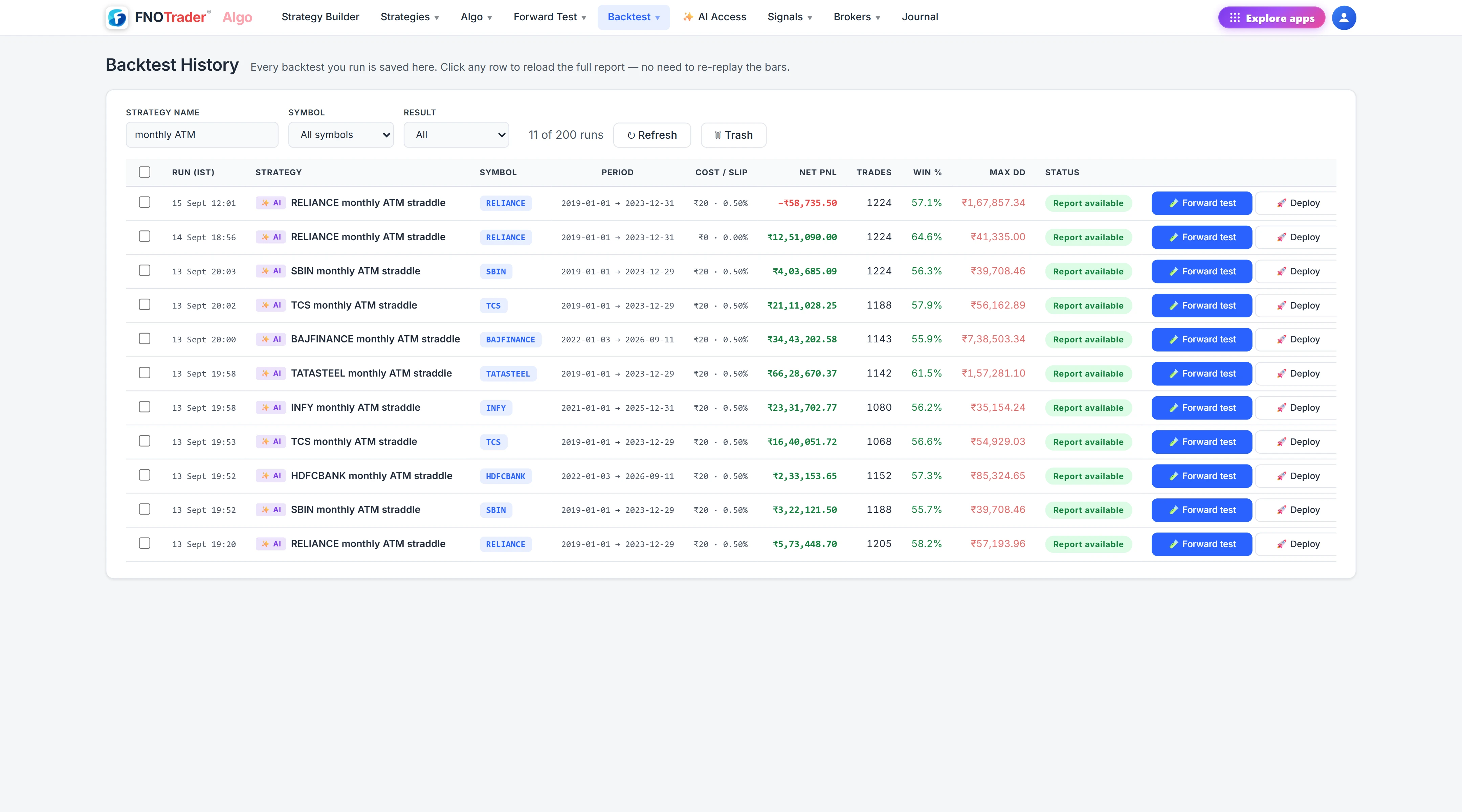
Backtest History
Every run is kept — single strategy, portfolio, every sweep variant and runs your AI assistant made through FNOTrader's MCP access, which are marked as such. Each row shows when it ran (IST), the strategy, symbol, period, the cost and slippage used, net P&L, trades, win %, max drawdown and status.
| Feature | What it does |
|---|---|
| Search and filters | Search runs, filter by symbol, and show only profitable or losing runs. |
| Status | Submitted, Running, then Report available. A failed run shows why on hover. A queued run can be removed; a running one can be stopped. |
| Stale badge | Marks a run computed by an older engine version with a bug since fixed. Re-run it for valid numbers. |
| View | Reopens the full report instantly. |
| Open in Builder | Shows the strategy exactly as it was configured for that run. |
| Forward test / Deploy | One click to run the strategy on a demo account or assign it to a broker account. |
| Delete | Moves the run to Trash, where it can be restored. |
Keep runs you disagree with. The run that failed is often the most informative one when you compare it with the version that worked.
Historical Charts: replaying a day
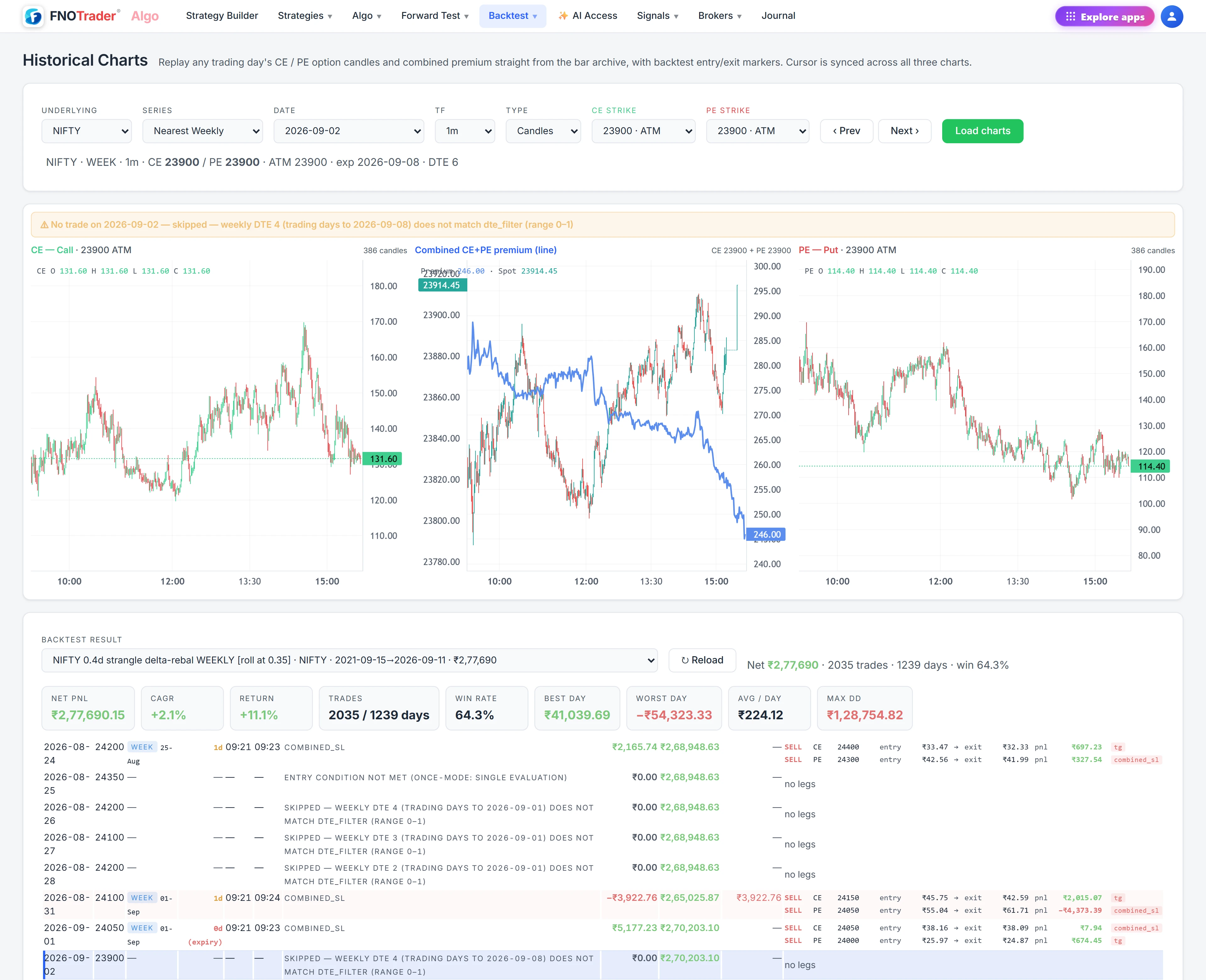
Historical Charts draws three synced charts for a chosen trading day straight from the 1-minute archive: the call premium, the put premium, and the combined premium of the two. Move the cursor on one and the other two follow, so you can read all three at the same minute.
| Control | Options |
|---|---|
| Underlying | NIFTY or SENSEX |
| Series | Nearest weekly or nearest monthly expiry |
| Timeframe | 1, 3, 5 or 15 minutes |
| Type | Candles or line |
| CE / PE strike | Loaded from that day's chain once the expiry is chosen |
Pick a saved backtest in Backtest result and its days are listed below the charts with each day's ATM and expiry. Click a day and its entry and exit markers are drawn on the candles. Prev and Next then step through the backtest's own days rather than calendar days.
A worked example: diagnosing a bad day
A hypothetical short straddle's report shows its worst day at −₹14,000. You open that day in Historical Charts on 1-minute candles.
The combined premium chart shows entry at ₹210 at 09:20. At 10:40 the put premium spikes and the stop marker sits on that candle's high; ten minutes later the combined premium is back to ₹205. The rule did what it was told: the stop fired on a spike that reversed. Whether that is a bad rule is a judgement for you — but you now know it was the stop design, not missing data or a wrong strike, and you know exactly which setting a parameter sweep should test.
Limits worth knowing
- Historical Charts covers NIFTY and SENSEX chains; for other underlyings use the report's trade list.
- Charts are built from 1-minute bars, so anything that happened inside a minute appears as that bar's high or low.
- A run deleted to Trash no longer appears in the backtest picker until restored.
Where to find it
- In Algo, open Backtest History from the Backtest menu.
- Filter to the run you want and click View for the full report — see reading the backtest report.
- Open Historical Charts, choose the same run under Backtest result, and click a day row.
- Change timeframe or strikes and click Load charts; use Prev and Next to walk the run.
Common questions
Are old backtests deleted automatically?
No. Every run is kept in Backtest History. Deleting one moves it to Trash, where it can be restored.
Can I see where my backtest entered and exited on the chart?
Yes. In Historical Charts, choose a saved backtest under Backtest result and click a day. Entry and exit markers are drawn on the call, put and combined premium candles.
What is a combined premium chart?
It is the call premium plus the put premium, minute by minute. For a straddle or strangle it is the price of the whole position, so it shows directly whether the position was gaining or losing.
Why does a run show a stale badge?
It was computed by an older engine version that had a bug since fixed. Re-run the strategy to get valid numbers.
More on Algo & Backtesting
More in Algo & Backtesting · App: Algo & Backtest · Definitions: glossary · All: every article