What a broker connection is
FNOTrader does not hold your money or your positions. Your broker does. A broker connection is a login session, made with API keys your broker issues, that lets FNOTrader read your book and send orders on your instruction.
You set it up once on the Brokers page. The same page, and the same saved connection, appears in Options, Trade, Algo & Backtest and Trade Copy, so a broker connected in one app is available in the others. You can connect more than one broker.
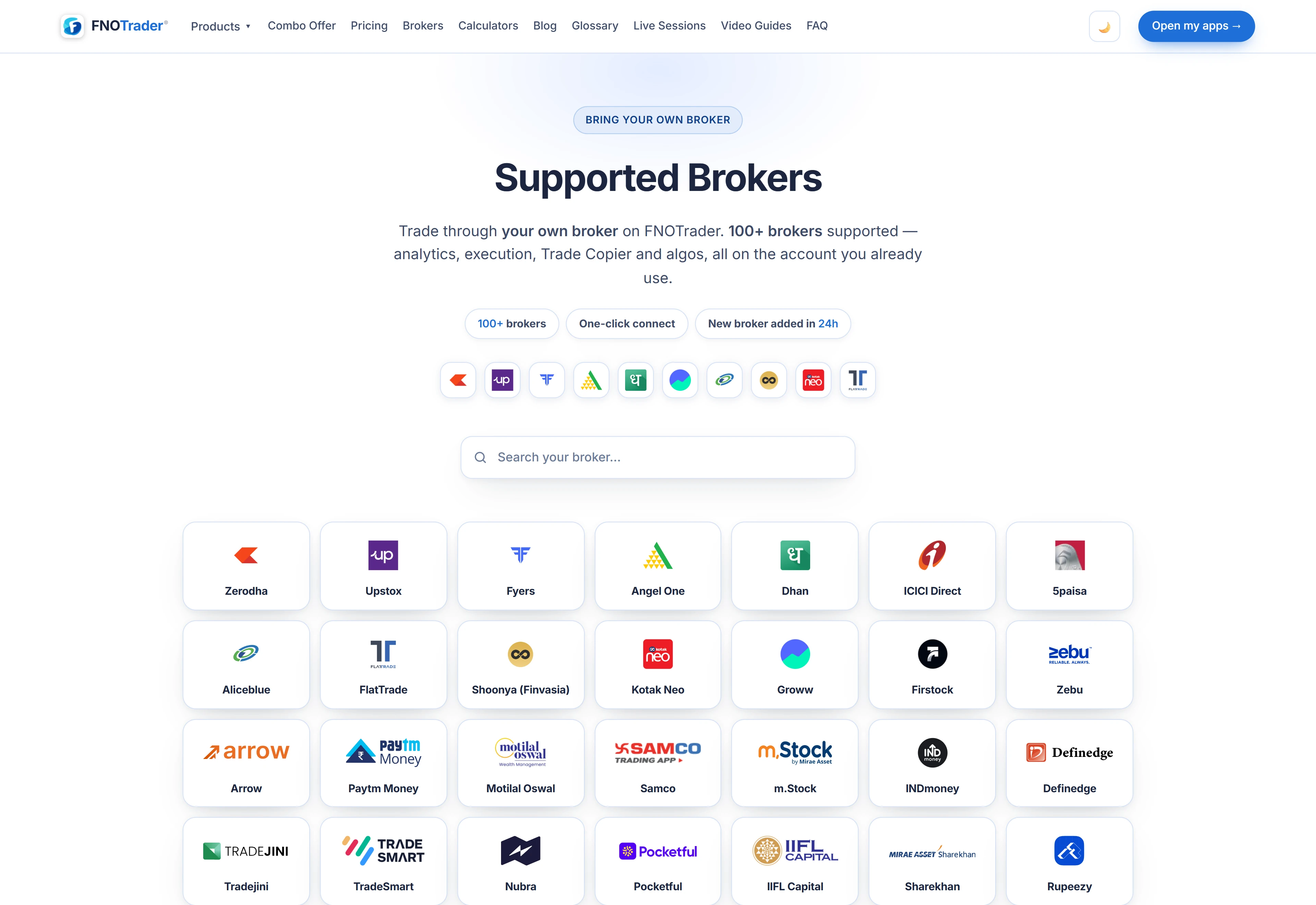
Which brokers are supported
The Available Brokers panel has a card for each integration. Twenty-nine brokers have their own integration: Zerodha, Upstox, Angel One, Dhan, Fyers, ICICI Direct, Kotak Neo, Groww, 5paisa, Aliceblue, FlatTrade, Shoonya, Zebu, Firstock, Arrow, Paytm Money, Motilal Oswal, Samco, m.Stock, INDmoney, Definedge, Tradejini, TradeSmart, Nubra, Pocketful, IIFL Capital, Sharekhan, Rupeezy and HDFC Sky.
Two more cards are platforms rather than brokers, and they are how the list reaches well past a hundred:
- Open XTS — many brokers run their trading API on the Symphony XTS platform. One card covers them all; you enter your broker's name and its XTS dashboard address. The search box knows over ninety XTS broker names, so typing yours brings up this card.
- ODIN — the same idea for brokers on the ODIN platform. StockHolding has its own card on it, with the broker name filled in.
If your broker is on neither, the page gives an email address to request a new integration.
The guided setup, step by step
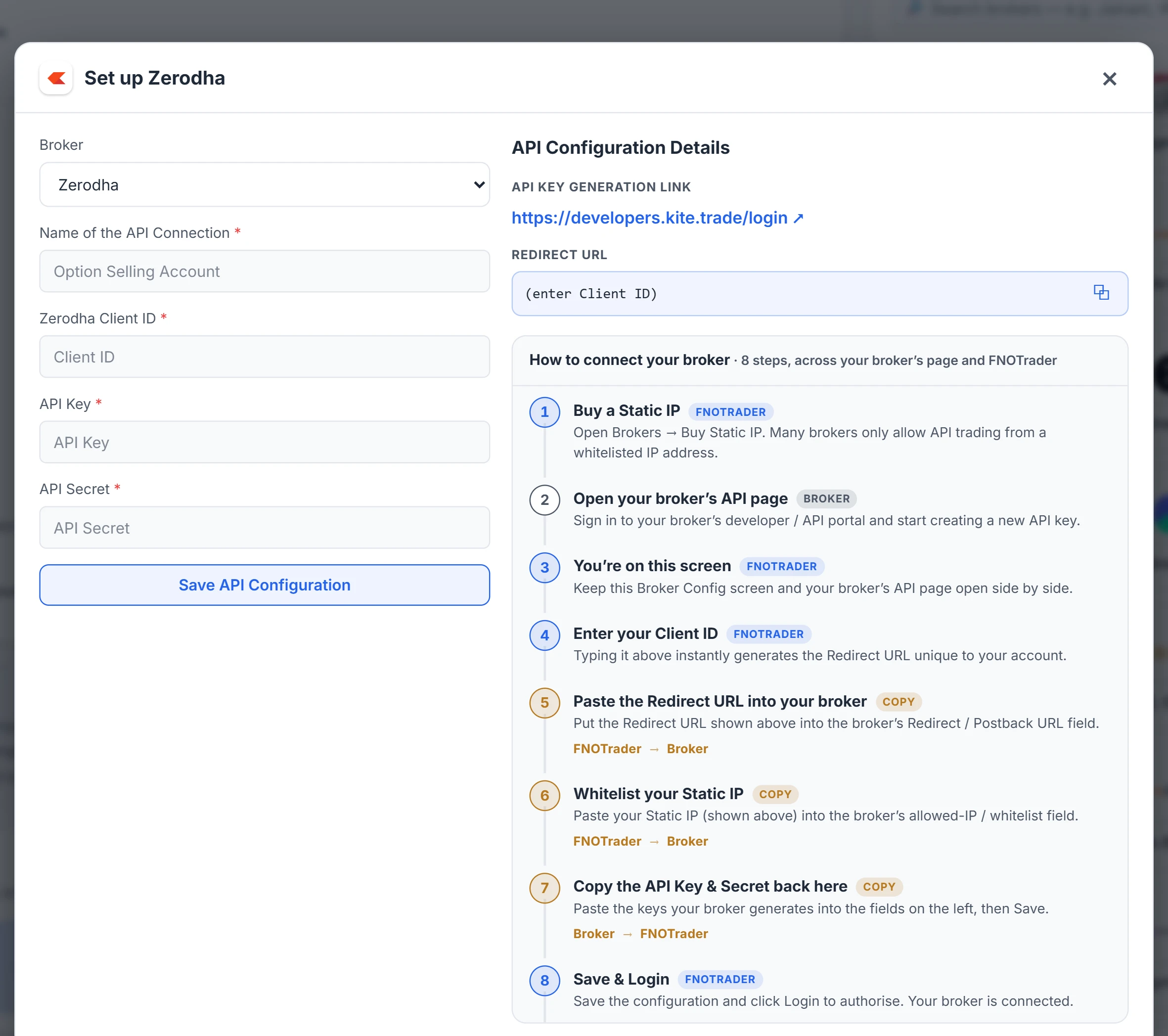
Click a broker card and its setup opens: the fields that broker needs on the left, and a numbered walkthrough beside them. For a typical redirect-login broker (Zerodha, Upstox, Fyers and most others) the steps are:
- Open your broker's developer or API page and start creating an app.
- Enter your Client ID on FNOTrader. That instantly generates a Redirect URL unique to your account.
- Paste the Redirect URL into the broker's Redirect / Postback field.
- If your broker whitelists IPs, paste your static IP into its allowed-IP field.
- Copy the API Key and Secret the broker generates back into FNOTrader, and Save.
- Click Login to authorise. The row turns “Logged in”.
Platform logins differ. Open XTS and ODIN sign in server-to-server, so there is no redirect URL to set, and a static IP is optional — only some of their brokers whitelist. Some brokers sign in with a password, MPIN or TOTP instead of a redirect; for those, Login opens a small dialog. On ODIN your password is asked for at each login and never stored.
Many brokers only accept API orders from an IP you have registered with them. That is covered in static IP for API trading.
Logged in is not the last step
The step people miss: a logged-in account is not yet enabled for trading. Until it is, it stays hidden from the account pickers on the Options and Terminal order screens and the Trade order panel. When you come back from the broker's login, the page offers to enable it; you can also click the amber Not enabled for trading pill on the row.
| Column | What it tells you |
|---|---|
| Broker / Name | Which broker, and the name you gave the account |
| Broker ID | Your client ID, partly masked |
| Static IP | The IP assigned to this account, or an Assign link |
| Status | Logged in or out, and whether it is enabled for trading |
| Actions | Login or logout, enable for trading, edit, delete |
The static-IP check runs when you pick an account to trade with, not when you log in. If the account has none and its broker needs one, you are told before the order, with the choice to assign one or continue. Accounts used only for reading — such as a Trade Copy leader — are not asked.
Paper accounts
Paper Trading is the first card in the list. It is a demo account: no API keys, nothing to whitelist. Give it a name and Save. It is always enabled, needs no static IP and never calls a broker, so orders sent to it cannot reach the market.
Paper accounts are the sensible first step with any new workflow — a new strategy in Algo, a new copy group in Trade Copy — before a real account is involved.
Common mistakes
- Swapping the key and the secret. Each broker labels them differently; the form uses that broker's own field names.
- Typing the Client ID after copying the Redirect URL. The URL is built from the ID; enter the ID first.
- Stopping at “Logged in”. Enable the account for trading or it will not appear on order screens.
- Hunting for a redirect field on XTS. There is none; XTS signs in directly.
Where to find it
- Open Options, Trade, Algo or Trade Copy and choose Brokers from the menu.
- Search for your broker in Available Brokers and click its card.
- Follow the steps beside the form, Save, then Login.
- Enable the account for trading, and assign a static IP if your broker requires one.
The full list of supported brokers is on /brokers.
Common questions
Which brokers does FNOTrader support?
Twenty-nine brokers have a direct integration, including Zerodha, Upstox, Angel One, Dhan, Fyers, ICICI Direct, Kotak Neo and Groww. The Open XTS and ODIN cards cover the many more brokers that run on those platforms.
Do I need to connect my broker separately in each app?
No. Options, Trade, Algo and Trade Copy share the same Brokers page and the same saved connections.
Why does my logged-in broker not show on the order screen?
It has not been enabled for trading. Click the 'Not enabled for trading' pill on its row on the Brokers page.
My broker is on Symphony XTS. Which card do I use?
Use Open XTS. Enter your Client ID, your broker's name, its XTS dashboard URL and the API key and secret your broker gives you. There is no redirect URL to set.
Can I practise without a real broker account?
Yes. Add a Paper Trading account: it needs no keys, never calls a broker, and works in the same order screens.
More on Platform & setup
More in Platform & setup · App: Brokers · Definitions: glossary · All: every article