What the watchlist is for
A watchlist in a trading terminal has one job: get you from “I am looking at this stock” to a correct order with as little guesswork as possible.
That means the list has to carry more than a price. You want to know, before you click Buy, whether you already own the stock, whether the exchange has narrowed its daily price band, whether it is under a surveillance stage, and what the order book looks like right now. The Trade app's watchlist sits on the left of the terminal and does all of that on the row itself. The overall layout of the terminal is covered in the trade terminal guide; this post is only about the lists.
The kinds of list, and which ones you can edit
There are four kinds of list in the dropdown, and they behave differently on purpose.
| List | What it holds | Editable? |
|---|---|---|
| Six colour lists (Red, Orange, Yellow, Green, Blue, Sky) | Your own lists. Rename them, add and remove symbols. | Yes. Cannot be deleted, only renamed and cleared. |
| Custom lists | Lists you create and name yourself. | Yes, and they can be deleted. |
| Stocks App Watchlist group | A mirror of the colour-star buckets and named lists you keep in the Stocks App. | No — read-only. Edit them in the Stocks App. |
| Positions and Holdings | Built automatically from your broker's positions and holdings. | No — they follow your book. |
Your own lists (the six colours plus custom lists) are saved to your account, not to the browser. A list you build on the phone shows up on the laptop, and if two devices edit at the same time the app merges the two sets rather than throwing one away.
The Stocks App mirror refreshes every few minutes and whenever you come back to the tab. It is kept separate from the colour lists deliberately: an earlier design copied the Stocks App stars over the colour lists, which meant anything you added in the Trade app vanished on the next sync. Now the two never touch.
Reading the row: badges and tags
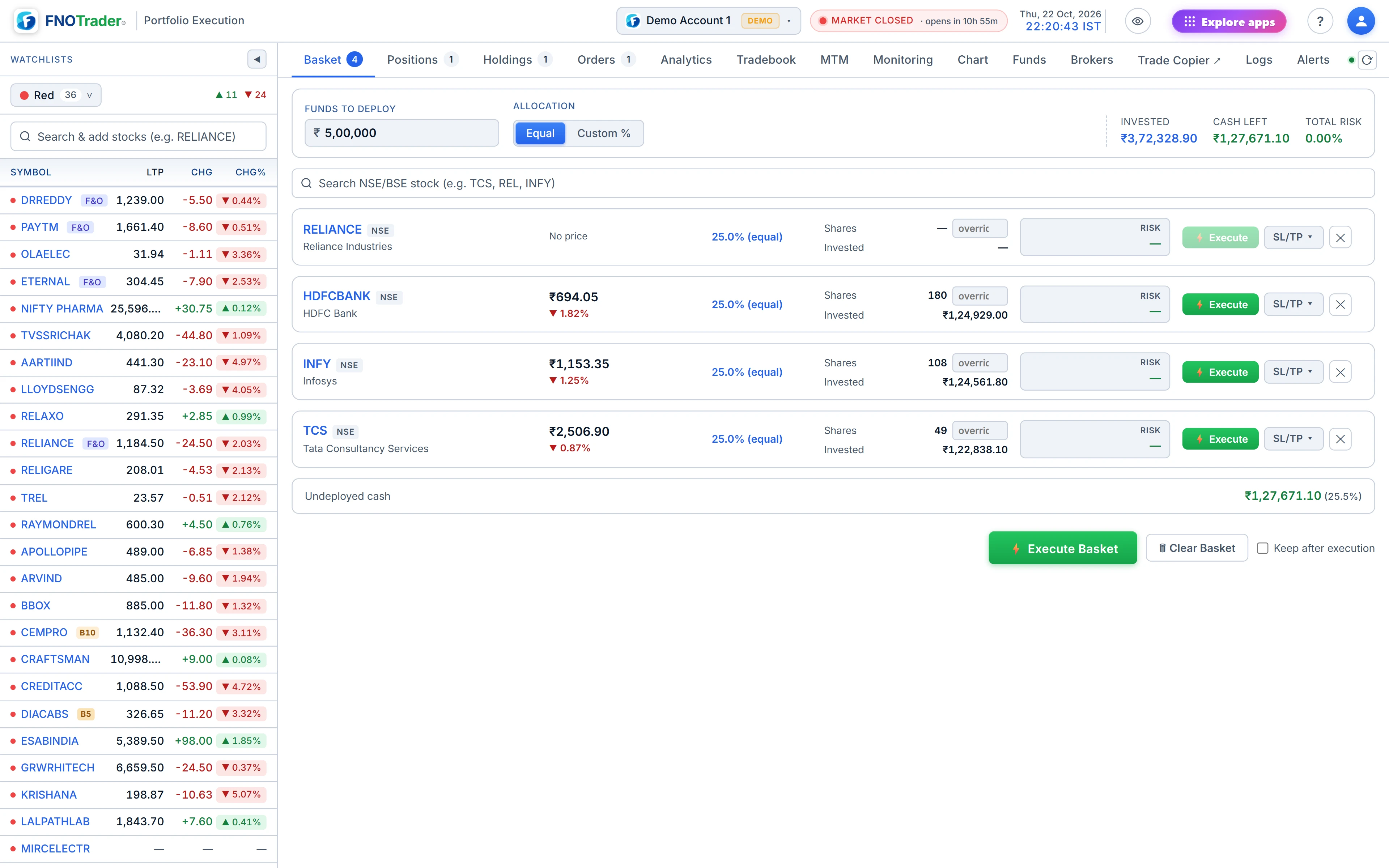
Each row shows LTP and day change, plus a few small badges that only appear when there is something to warn you about.
- B2 / B5 / B10 — the NSE price band, when it is tighter than 20%. A B5 stock cannot move more than 5% from the previous close in a session. Large caps with no band, and the usual 20% band, show no badge.
- G1–G4 — the Graded Surveillance Measure stage, with the exchange's remark in the tooltip. Higher stages carry stricter trading rules.
- F&O — futures and options exist on this underlying.
- Owned tags — the quantity you already hold, and any open intraday position (shown as +qty or −qty), so you do not double up by accident. On the narrow desktop column the quantity moves into the tooltip.
The mistake these badges prevent is a common one: placing a large buy in a B5 name that is already near its upper circuit, and then discovering there are no sellers.
Depth and the day's detail on one click
Expanding a row opens a five-level bid and ask ladder under it, with the day's open, high, low, average traded price, last traded quantity and, where the scrip has a band on record, the lower and upper circuit prices worked out from the band and the previous close — along with previous close, volume, the last trade time. If a value is not in the feed it is shown as a dash rather than filled with a plausible number.
From the same row you can open the chart, start a buy or sell ticket, set an alert, add the stock to the basket, or move it to another list.
TradingView import and export
TradingView saves a watchlist as a plain text file. Section headings start with ### and
symbols are exchange-prefixed, for example NSE:RELIANCE. The Trade app reads that format directly,
whether the symbols are one per line or comma-separated, and accepts bare tickers too.
On import you pick one of three modes:
- Append — add the file's symbols to the list you have open.
- Replace — swap the open list's contents for the file's.
- Split into new watchlists by section — every
###section becomes its own list.
Export works the other way: the current list or all lists, as a .txt file TradingView will
import as-is.
A worked example. A file containing ###Banks, NSE:HDFCBANK,NSE:ICICIBANK,
###Autos, NSE:MARUTI imported with Split creates two lists, “Banks” with
two symbols and “Autos” with one. The same file imported with Append adds all three to whichever
list is open.
Limits worth knowing
- The Stocks App lists appear only if your account has the Stocks App, and they stay read-only here.
- Positions and Holdings lists cannot be edited — close or buy the stock and the list follows.
- The depth ladder needs a live feed for that symbol; opening it focuses the feed, so the first full update can take a moment.
- The app is cash equity and ETFs. Imported futures or options symbols are not tradable here.
Where to find it
- Open Portfolio Execution. The watchlist is the left panel (on a phone, the Watchlist button in the bottom bar).
- Use the list dropdown to switch lists, create a custom one, or open the Stocks App group.
- Use the import and export buttons in the watchlist header for TradingView files.
- Click a row to expand its depth; use the row buttons to chart, trade, alert or move it.
Next: how the order ticket picks between NSE and BSE — order panel and smart routing.
Common questions
Can I import a TradingView watchlist into FNOTrader?
Yes. Export the list from TradingView as a .txt file and import it in the Trade app's watchlist. You can append it, replace a list, or split each ### section into its own list.
Do my watchlists sync between phone and laptop?
Your own lists (the six colour lists and custom lists) are saved to your account, so they appear on every device you sign in on.
What does B5 mean next to a stock?
It is the NSE price band: a B5 stock cannot move more than 5% from the previous close in one session. The badge only appears for bands tighter than 20%.
Why can't I edit the Stocks App lists in the Trade app?
They are a read-only mirror of the lists you keep in the Stocks App. Edit them there and the Trade app picks up the change on the next refresh.
Does the watchlist show market depth?
Yes. Expand a row to see a five-level bid and ask ladder with the day's open, high, low, average price and circuit limits.
More on Portfolio Execution
More in Portfolio Execution · App: Portfolio Execution · Definitions: glossary · All: every article