The problem the Desk solves
A screen gives you a list. The work starts after that: looking at each chart, checking whether the business behind it is growing, and deciding which names deserve a closer look. The Desk is built for that review pass.
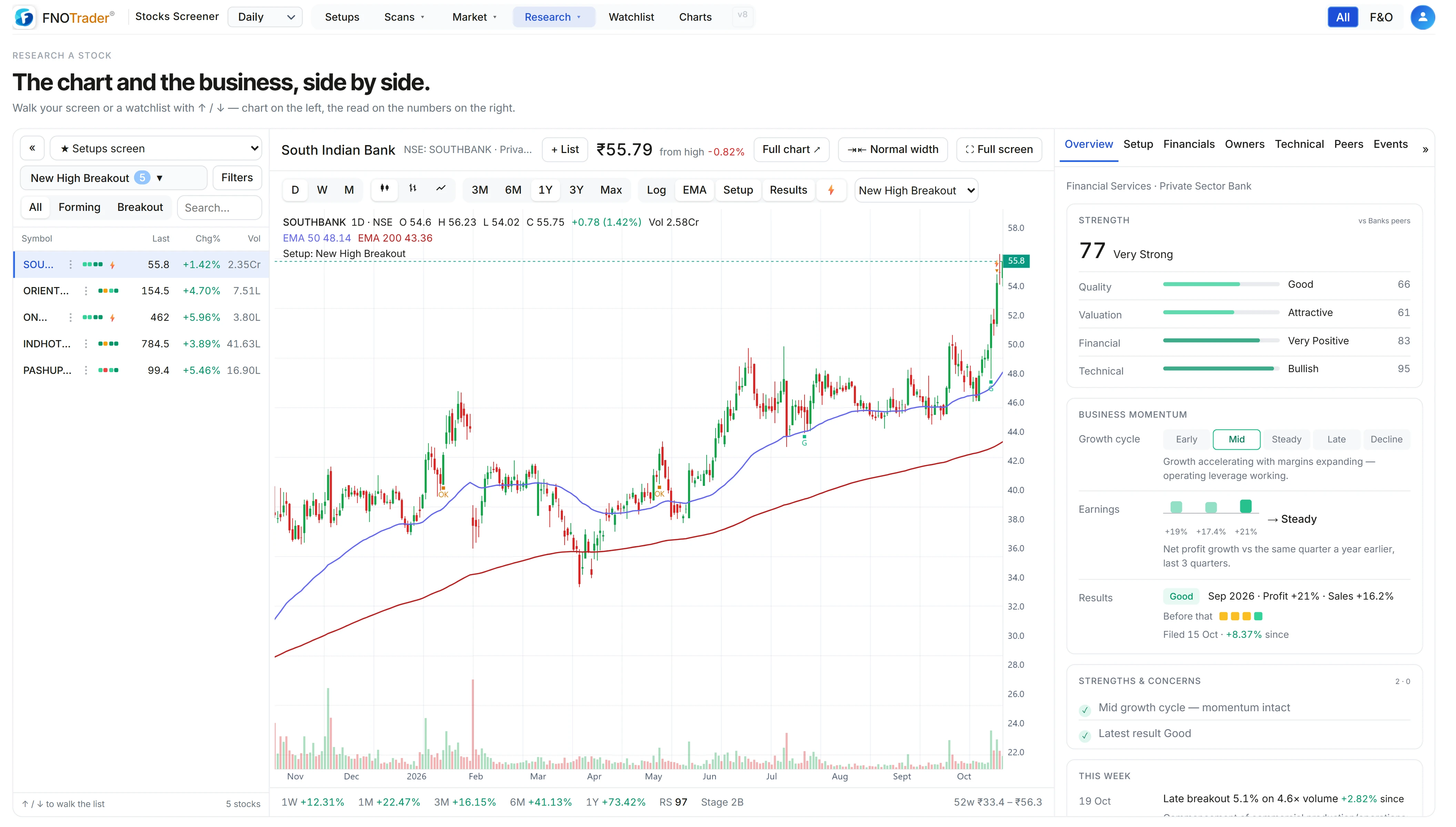
It has three panes. On the left, the list — the current Setups screen or any of your watchlists. In the middle, the chart of the selected stock. On the right, the read on the business. Press the down arrow and everything moves to the next stock together.
The three panes
- The list carries symbol, last price, day change and volume, four small dots for the stock’s quality, valuation, financial-trend and technical scores, and a mark when a catalyst touched it this week. You can apply the Setups filters, switch between All, Forming and Breakout, search, and sort by any column.
- The chart switches between daily, weekly and monthly bars, candles, bars or line, ranges from 3 months to the full history, log scale, the 50 and 200-day EMAs, the drawn setup (pivot and pattern lines) and result filing markers.
- The details pane has seven tabs, described below.
Keyboard: ↑ / ↓ walk the list, [ and
] fold the left and right panes for a bigger chart. Panes can be resized, and
there is a full-screen mode.
The seven detail tabs
| Tab | What it holds |
|---|---|
| Overview | The strength score against industry peers, key numbers, strengths and concerns, growth stage, earnings momentum and this week’s catalysts. |
| Setup | The setup the scan found, drawn on the chart, with its confidence. |
| Financials | The result-grade trajectory, quarterly and annual sales and profit, margins and returns, balance sheet and cash flow. |
| Owners | Shareholding and its trend, insider trades, and bulk & block deals. |
| Technical | The technical read, indicators and price against its moving averages. |
| Peers | Where the stock ranks within its industry on ROCE, ROE, operating margin, sales growth, profit growth and P/E, and the largest peers with their scores. |
| Events | The screens the stock is in today, and its result filings. |
How the read is worked out
Every line on the right is rule-based and explainable. A few of the rules:
- Result grades compare each quarter with the same quarter a year earlier. Profit up 40%+ with sales up 20%+ is Blockbuster; profit up 15%+ with sales up 10%+ is Good; profit up at all is OK; profit down up to 25% is Weak; worse, or a loss, is Trash; a profit after a year-ago loss is Turnaround. The last nine graded quarters are shown as a trajectory on the Financials tab.
- Growth stage compares recent sales growth with the 3-year pace: Early, Mid, Late, Steady or Decline, with the reason in words.
- Earnings momentum looks at the last three quarters’ profit growth and calls it Accelerating, Steady or Decelerating.
- Peer ranks need at least five peers with data; P/E ranks only positive P/Es, and ROCE and operating margin are skipped for lenders, where they mean little.
There is no Buy or Sell anywhere in it. The Desk describes the business; the decision is yours.
A worked example: grading a quarter
Made-up numbers. A company reported quarterly sales of ₹550 crore against ₹480 crore a year earlier, and profit of ₹66 crore against ₹50 crore.
- Sales growth = (550 ÷ 480 − 1) × 100 = 14.6%
- Profit growth = (66 ÷ 50 − 1) × 100 = 32%
Profit is above 15% and sales above 10%, but sales are short of 20%, so the grade is Good, not Blockbuster. Net margin went from 10.4% to 12.0%, so “Net margin expanding YoY” would appear under strengths.
Limits
- Fundamentals update weekly and after results are filed, so a filing from this morning may not be graded yet.
- Insider trades and deals come from the latest daily catalyst scan, not live.
- Rules are coarse by design. A Weak quarter after an exceptional base is still Weak; read the numbers behind the grade.
The scores in the dots and on Overview are explained in strength scores; the fundamentals and earnings data in fundamentals and the earnings calendar.
Where to find it
- Open the Stocks Scanner and choose Research → Desk.
- Pick the Setups screen or a watchlist at the top of the list.
- Click the first stock, then use the arrow keys to walk the list.
- Use + List to add a stock to a watchlist as you go.
Common questions
How can I review a watchlist quickly with charts and fundamentals?
Open Research → Desk, pick the watchlist, and use the up and down arrow keys. The chart and the fundamentals pane update together for each stock.
What does a Blockbuster result mean?
Profit up 40% or more and sales up 20% or more against the same quarter a year earlier.
How are peer ranks calculated?
The stock is ranked against its industry peers on ROCE, ROE, operating margin, sales growth, profit growth and P/E, and shown as the share of peers it beats. At least five peers with data are needed.
Does the Desk show insider buying and bulk deals?
Yes, on the Owners tab, from the latest daily scan of insider trades and bulk and block deals.
More on Stocks App
More in Stocks App · App: Stocks Scanner · Definitions: glossary · All: every article