The layout, top to bottom
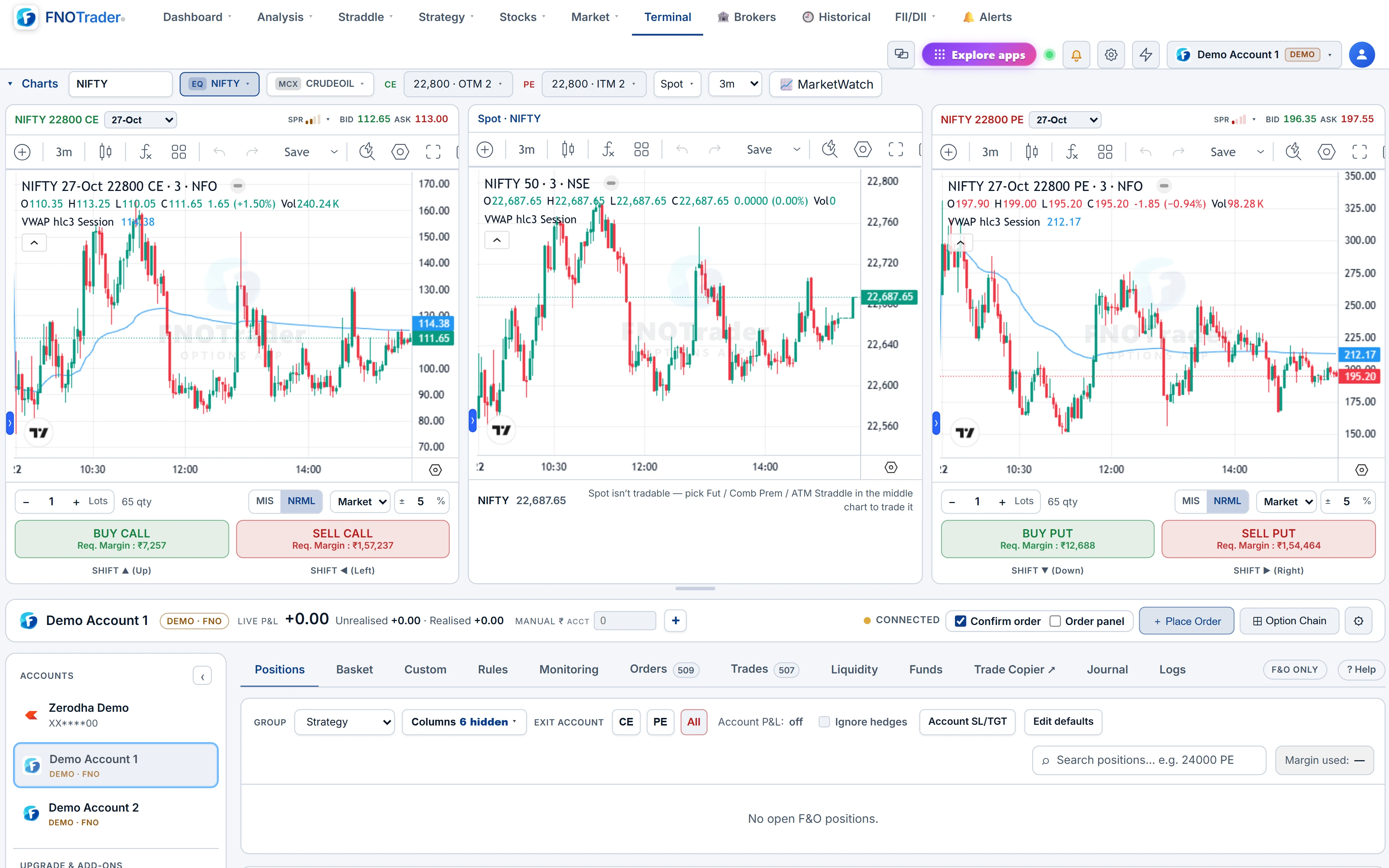
Four parts: the chart desk, the account bar, the accounts sidebar and the tabs.
- Chart desk — three live charts: CE on the left, a middle pane, PE on the right, each with its own buy and sell bar.
- Account bar — the selected account and its live P&L split into unrealised, realised and manual, plus Place Order, Option Chain and the settings menu.
- Accounts sidebar — every connected account, Demo ones badged. Click one and the whole desk switches to it; the arrow folds the sidebar away.
- Tabs — the book and everything around it.
This is the options desk. For the stock-and-F&O execution app with watchlists and sizing, see the Portfolio Execution guide.
Trading off the chart desk
The chart bar sets symbol (index, stock or MCX), expiry, the CE and PE strikes (shown as ITM or OTM n) and the timeframe. The middle pane plots spot, futures, combined premium (CE + PE) or the rolling ATM straddle. Each pane shows the contract, liquidity and spread meters and live bid and ask; indicators include VWAP, OI with 10 and 20-period averages, and IV.
Right-click a price and the menu reads your click against LTP: a stop-limit breakout if you clicked above, a limit if below (the reverse for sells), or market. It also offers a Trigger Buy / Sell — a conditional order that fires when LTP or combined premium crosses that level — and, on a pane tied to an open position, Set Target and Set Stop-loss at that exact price. Your entries, armed triggers and SL / TGT lines sit on the chart.
What each tab is for
| Tab | Use it to |
|---|---|
| Positions | Watch, adjust, guard and exit the live book, grouped by strategy |
| Basket | Stage several legs, see the hedged margin, send them together |
| Custom | Build a sold leg plus hedge from rules — distance, premium or delta |
| Rules | Review alerts that place an order when they fire |
| Monitoring | See every armed trigger and guard, and what has fired |
| Orders, Trades | Modify or cancel working orders; audit fills |
| Liquidity | Check depth and spread before sending size |
| Funds | Available and used margin, SPAN, exposure, premium, collateral |
| Journal | Equity curve, MTM calendar, win rate and trade stats |
| Logs | What the desk did on its own — regrouping, rolls, rule actions |
In Positions, group by strategy, symbol or symbol + expiry. A strategy header reads like one position — structure, legs open, credit or debit, combined average and current price, P&L and margin — with Adjust (add lots, exit a quarter, half or all, roll every strike up, down, wider or closer). On a single leg, Manage offers Add, Exit, Reverse and Roll, where Risk ON moves the strike towards the money and Risk OFF moves it further out. A roll is two orders, close then open, and the new leg rejoins its strategy. Rolls change strikes only; there is no expiry roll.
Keyboard shortcuts and the settings menu
| Keys | Order |
|---|---|
| Shift + ↑ / Shift + ← | Buy / Sell the CE pane |
| Shift + ↓ / Shift + → | Buy / Sell the PE pane |
| Ctrl + ↑ / Ctrl + ↓ | Buy / Sell the middle pane (futures, straddle or rolling ATM straddle) |
The keys use each pane's order bar — its lots, product, order type and buffer. Keep the confirm-order preference on until the shortcuts are muscle memory.
The settings menu holds the MTM graph for the account or one strategy (min, max, max drawdown, margin used and return on margin, with a share-as-image link) and privacy mode, which hides every P&L figure for screen sharing. In the book's columns you can add Greeks per leg, per group and in total: delta in lots and ₹ per point, gamma, theta in ₹ per day and vega in ₹ per IV point. On windows narrower than 1,500 px the Greek columns hide to fit.
Worked example: one breakout, one exit
Hypothetical: NIFTY is just under a level you are watching, and the 24,100 CE trades at ₹96.
- Right-click the CE pane at ₹104 and choose Trigger Buy. It arms on the server and shows as a line on the chart.
- The premium trades ₹104; the trigger fires and you are long, say, 2 lots.
- Right-click at ₹128 → Set Target; right-click at ₹90 → Set Stop-loss.
Risk is ₹14 per unit below entry and reward ₹24 above it: 24 ÷ 14 = 1.7 to 1. All three levels appear in the Monitoring tab and are enforced on the server, so closing the tab does not disarm them. The guards themselves are covered in server-side risk guards.
On a phone, and where to find it
On a narrow screen the Terminal switches to cards: one per position with quantity, average, P&L and LTP, an invested / current / P&L summary, and a bottom bar to move between Chart, Book and Accounts. Every desktop action is still there.
- Open the QuikTrade Terminal, or Terminal in the Options app menu.
- Pick an account in the sidebar — start with a Demo account.
- Set symbol, expiry and strikes in the chart bar, then trade from the panes, the chain or the ticket.
To rehearse all of this without a broker, see Demo trading.
Common questions
What are the keyboard shortcuts in the QuikTrade Terminal?
Shift with up or left buys or sells the CE pane, Shift with down or right buys or sells the PE pane, and Ctrl with up or down buys or sells the middle pane.
Can I place a stop or target by clicking on the chart?
Yes. Right-click a price on a pane linked to your position and choose Set Target or Set Stop-loss at that level.
What does the middle chart show?
Your choice of spot, futures, combined CE plus PE premium, or the rolling ATM straddle.
Does the Terminal work on a phone?
Yes. It switches to a card layout with Chart, Book and Accounts views and keeps every action.
Can I roll an option to the next expiry?
No. Rolls move strikes only. Close the leg and open the new expiry as a separate order.
More on QuikTrade Terminal
More in QuikTrade Terminal · App: QuikTrade Terminal · Definitions: glossary · All: every article