What you can do from a chart
Connect a broker account (or use a Demo account) and the chart becomes a place to place orders, see working orders and positions, and set stop-loss, target and conditional levels by dragging lines.
The account picker in the top bar shows which account an order will reach. Real accounts are listed above Demo ones, and a Demo account always carries a badge and a muted colour so the two can never be confused at a glance. For setting up broker access, see the trade terminal guide.
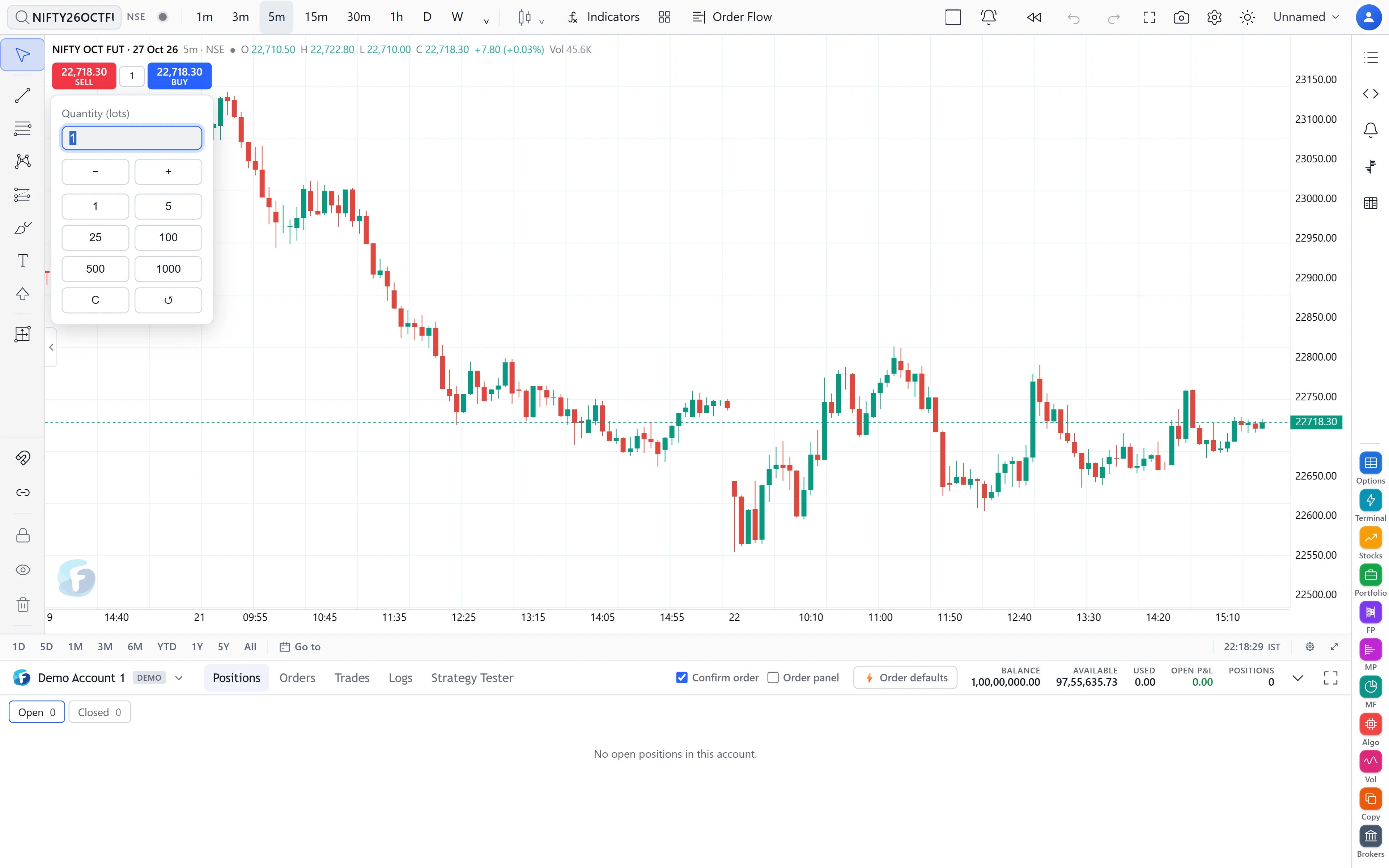
The SELL | qty | BUY bar and what a click does
Under the chart legend sits a bar showing the live sell and buy prices with a quantity between them. The quantity is in lots; click it for quick sizes (1, 5, 25, 100, 500, 1000), −/+, reset to 1, or back to your order-defaults lots.
What a BUY or SELL press does depends on two switches:
| Setting | What happens |
|---|---|
| Confirm order on (default) | A short confirmation — instrument, side, lots, price, product, account — then Place, Edit or Cancel. |
| Order panel on | The full order ticket opens: product (Normal, Intraday, Delivery), type (Limit, Market, SL, SL-M), lots, price, trigger and the margin it needs. |
| Both off (one-click) | The order is placed at once on your defaults. Off unless you turn it on. |
Closing a position is never one-click: it always asks once.
Right-click a price for a menu that acts on that price: a limit there, a market order at the touch, or a trigger that waits for price to reach it.
Market orders are sent as protected limits
A plain market order is never sent. Many broker APIs reject them for F&O, and an unfilled market exit can leave a position without its stop. Instead a market order becomes a limit priced through the current price by your market-protect buffer (5% unless you change it in Order Defaults), rounded to the contract’s tick. The confirmation shows the actual limit before you place it.
Example. With LTP 120.00 and a 5% buffer, a BUY becomes a limit at 120 × 1.05 = 126.00, and a SELL a limit at 120 × 0.95 = 114.00. The order still fills at the best available price; the limit only caps how far it can go.
Orders, positions, stop-loss and target lines
- Working orders show as lines with quantity and type. Drag one to modify it; the × cancels it after asking.
- Positions show with live P&L (in ₹, points or percent), × to close and ⇅ to reverse.
- SL and TGT lines are the position’s stop-loss and target. These are held by FNOTrader’s servers and enforced for paper and real accounts whether a chart tab is open or not. Drag a line to move the level. Removing a stop always asks first. Order Defaults can put a default stop and target on each fresh fill.
Conditional trigger lines
A trigger says “when price reaches this level, place this order”. It appears as a dashed orange line with a pill such as “BUY ×1L TRIG · NIFTY 50 ≥ 23,150.00”.
The server holds the condition and places the order; it does not need the chart to stay open. A trigger is drawn only after the server has acknowledged it, and if the server cannot be reached you are told it is not armed rather than shown a line that means nothing.
Direction comes from where the line sits: above the current price it waits for price to rise to it (≥), below it waits for a fall (≤). It is worked out again whenever you drop the line, so dragging a trigger through the price cannot leave a condition that is already true and fires on release.
The account panel and option chain
The panel under the chart has Positions, Orders, Trades, Logs and the Strategy Tester, with the account’s summary beside them. The option chain opens as a side panel and follows the focused chart — NIFTY 50 shows NIFTY’s chain, a stock its own, an option its underlying’s. Columns include LTP, change, OI, OI change, volume, IV, greeks, bid/ask and buildup; OI change, IV and greeks need Options access on your account, otherwise a basic chain with LTP, OI and volume is shown. Click a strike to chart it, or hover for buy, sell, add to watchlist or open in a new chart. To read a chain, see option chain analysis.
Where to find it
- Sign in on FNOTrader Charts and pick an account in the top bar.
- Use the SELL | qty | BUY bar, or right-click a price.
- Set confirmation, one-click and on-chart plates in chart Settings → Trading.
- Open the option chain from the rail on the right of the chart.
Price alerts are a different thing from triggers — see alerts on the chart.
Common questions
Does a trigger line on FNOTrader Charts work if I close the browser?
Yes. The server holds the condition and places the order when it is met. It is drawn only once the server has accepted it.
Are the SL and target lines only on the chart?
No. They are the server-held stop-loss and target for the position, enforced whether a chart is open or not.
Does FNOTrader send market orders?
Market orders are sent as limits priced through the current price by your market-protect buffer, so the price is capped.
Can I turn off the order confirmation?
Yes, by switching on one-click trading. Closing a position still asks once.
Can I practise without a broker?
Yes. Use a Demo account; it is badged so it is never mistaken for a real one.
More on Charts & Marketplace
More in Charts & Marketplace · App: FNOTrader Charts · Definitions: glossary · All: every article